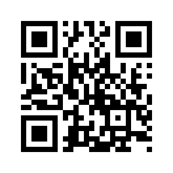
The Labs 2.32.70 package for HERO11 Black shares the version number. Do not install the HERO11 version on your HERO12. Use the HERO12-specific package linked above.
Scan with your HERO12
With the camera running, point it at this QR code and look for the red check mark. The same code works with both tested firmware versions.
Power the camera down completely, then verify the HDMI feed and startup behavior with your Media Mod, HDMI cable, and USB power supply.
Technical details
Why use a HERO12 instead of an AIDA camera?
A HERO12 can be an alternative for waterski video setups where image quality, stabilization, flexible digital zoom and framing, and lower camera hardware cost matter. With a Media Mod, it can provide a clean feed for workflows that use DJI video transmission or Blackmagic recording.
Running on external USB power with the internal battery removed can reduce internal heating and the risk of thermal shutdown. The camera can still overheat, so test it under the expected recording conditions.
GoPro Labs firmware selection and integrity
In MySkiTool testing, HERO12 Labs 2.40.70 supported clean HDMI output and fast startup with the same QR code. It required pressing the camera power button, so use the original HERO12 Labs 2.32.70 package when you need automatic USB power-on.
Firmware comparison
Feature
HERO12 2.32.70
HERO12 2.40.70
Clean HDMI output
Yes
Yes
Fast startup
Yes
Yes
Automatic USB power-on
Yes
No
Compatible with our single QR code
Yes
Yes
Results are based on MySkiTool testing of these two HERO12 firmware versions.
Firmware source and integrity
MySkiTool links to the original firmware packages and does not modify, repackage, or redistribute GoPro firmware. MySkiTool verified that the linked HERO12 Labs 2.32.70 ZIP matched its previously downloaded original package using SHA-256.
What the QR commands do
HDMI=1 sets clean HDMI as the default output, without camera icons.
WAKE=2 requests automatic startup when USB power is applied. This worked on HERO12 Labs 2.32.70 in testing.
FAST=1 enables faster startup.
Install and verify before using it on the boat
Follow the manual update instructions on the GoPro Labs website. Verify the installed version in the camera menus.
Scan the configuration QR with the camera running. Look for the red check mark and shut the camera down completely.
Connect a compatible HERO12 Media Mod and an HDMI display or capture device. Start the camera and confirm the HDMI feed has no icons.
Turn the camera off, disconnect USB power, then reconnect it. On 2.32.70, confirm automatic startup. On 2.40.70, press the power button.
Repeat several times with the Media Mod, cable, and power supply you plan to use on the boat. Verify clean HDMI and the expected startup behavior each time.
Known limitations and power interruption
The results apply to the two tested HERO12 Labs versions. Version 2.40.70 required manual power-on, even with the combined QR command.
Automatic restart on 2.32.70 after an intermittent power interruption is a theoretical benefit. The project owner did not observe or test a vibration-induced power interruption. Verify behavior with your hardware before unattended use.
Automated waterski video with MySkiTool
MySkiTool can automatically capture ski passes, associate them with skier and scoring information, and deliver video for review. Tournament workflows can also feed webcast graphics.